
You may encounter the Error 9505: Database is in an inconsistent state while opening an Access database (.MDB or .ACCDB) file, especially the macro-enabled database file stored on a network share. It usually happens when multiple users try to add a new record to the database file simultaneously without a primary key. The “Database is in an inconsistent state” error occurs when there are inconsistencies in the database. In this article, we’ll discuss some effective methods to resolve this error.
Causes of Microsoft Access Error 9505: Database is in an Inconsistent State
This MS Access error can occur due to one of the below reasons:
- MDB/ACCDB file is corrupted
- Corrupted macros (in a macro-enabled file)
- The frxque32.mdb file is corrupted (only in the FRx Designer)
Troubleshooting Methods to Resolve Microsoft Access Error 9505: Database is in an Inconsistent State
You can face this error while launching the FRx designer in Microsoft Access. It usually appears if the QueDirectory settings are not configured correctly or if the frxque32.mdb file is corrupted or damaged. You can check and reconfigure QueDirectory Settings in SYSTEM.CFG. If the problem is not resolved, then try recreating the frxque32.mdb file. For this, simply locate the frxque32.mdb file, right-click on it, and rename it. If these fixes don’t work, follow the methods mentioned below.
Method 1: Disable the Leasing Mode
The “MS Access database is in an inconsistent state” error can occur when you try to open a database stored on a shared network drive. You can try disabling the leasing mode on your system to fix the error. To disable the leasing mode, follow the steps given below:
Note: If you are experiencing the error while using a split database, the lease change must be done on the system hosting the back-end database.
- Go to the Windows Start option and type Command. Right-click on Command Prompt and select Run as administrator.
- Copy and paste the following into the Command Prompt window:
REG ADD HKEY_LOCAL_MACHINE\SYSTEM\CurrentControlSet\Services\lanmanserver\parameters /v DisableLeasing /t REG_DWORD /d 1 /f
NET STOP SERVER
NET START SERVER
- Close the Command Prompt window.
Now, try to open the Access database to check whether the error is fixed or not.
Method 2: Compact and Repair the Access Database
This 9505 error is associated with inconsistencies in the tables, forms, reports etc. in the Access database. So, you can try running the Compact and Repair utility to resolve the issue. It eliminates unused space in the database and tries to repair the database. To use this utility, first make sure that no other user is using the database file and then follow the steps given below:
In your Microsoft Access, on the Templates page, double-click the Blank Database option.
Select File > Close.

- Select Database Tools and then choose Compact and Repair Database.
- On the Database to Compact From window, go to the affected Access database file and double-click on it.
It will create a copy of the repaired database at the same location.
If you’re not able to open the affected database, then use the Command-line switch to run the Compact and Repair utility. Here are the steps to follow:
- Right-click anywhere on your Windows Desktop and click New > Shortcut.

- The Create Shortcut window will dispay on the screen.
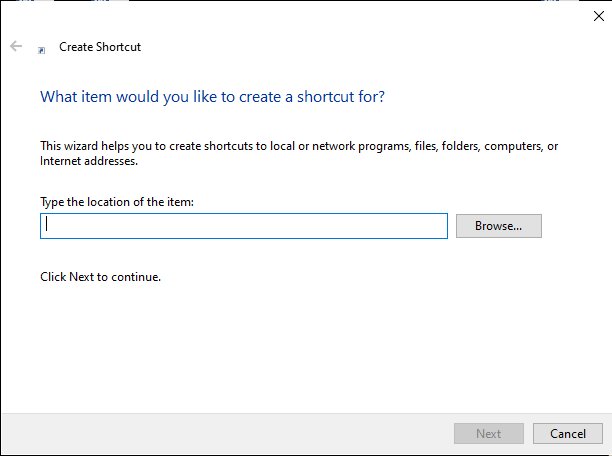
- In the Create Shortcut window, enter the location of the Access.exe file in double quotes and then type the command-line switch for Access to compact and repair the desired database. For example, “C: \pathtoAccess\msaccess.exe” “C:\pathtodatabase\database1.mdb” /repair.
Note: Replace the two paths in double quotes with the actual path of your Access folder and database.
Method 3: Import Data into a New Database
To resolve the Access database corruption errors, like error 9505: Database is in an inconsistent state, you can create a new database and import the data into it. Follow the below steps to import the data into a new database:
Open MS Access, click the External Data option, and then choose the Import Access Database button.
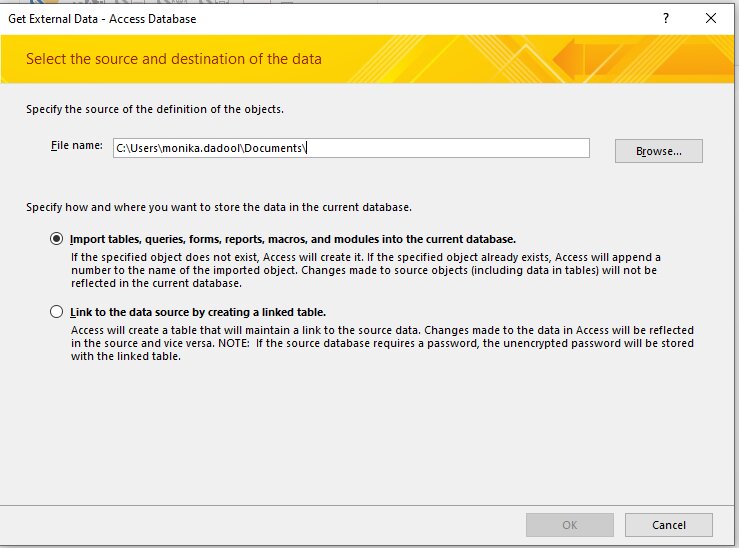
- Select the “Import tables, forms, reports, macros, and modules into the current database” option in the Get External Data – Access Database window.
- Select the database objects you need to import into the new database and then click OK.
What if the Error is Still not Resolved?
If the above methods fail to fix the issue, then you can rely on an advanced Access repair tool, such as Stellar Repair for Access. It can repair highly corrupted or damaged (.MDB and .ACCDB) files with complete integrity. It can repair password-protected, macro-enabled databases, including split database. It can help you recover forms, reports, macros, fields, tables, etc. from the database file and save them to a new database. The tool is compatible with Windows 7, 8, 10, and 11.
To see how the Stellar Repair for Access works, watch this video:
End Note
The Error 9505: Database is in an inconsistent state occurs due to damaged Access database file or corrupted frxque32.mdb file. You can try recreating the frxque32.mdb file or creating a new database file and then importing the data into it to resolve the issue. If severe corruption in the database is triggering the error, then you can use a professional Access repair tool, like Stellar Repair for Access. The tool can restore corrupted tables, forms, etc., from the database file and help you to fix the errors that occurred due to corruption.